Popular posts from this blog
Week3 Sprint
For this week, I've taken down by my health issue, so I could not spend time to do my work. What I did is to change particles from 2022 to 2020 version (I misunderstood the version of Unity we are working on). Above gif image is after editing particles to 2020. This is what I made in Photoshop little quick. This video is about boosting when the kart is accelerated. Below source code is edited version of the previous work, added public string variable. This part can be a game object in future. I use same source code but this input will be changed in future to the bool. public string name; const float StopDuration = 100000.0f; ParticleSystem ps; void Start() { ps = transform.Find(name).GetComponent< ParticleSystem>(); ChangeParticle(StopDuration); ps.gameObject.SetActive(false); } void Update() { if (Input.GetKeyDown("w")) { ps.gameObject.SetActive(true); ChangeParticle...
Weekly Blog 7 : HDRI backdrop in Unreal Engine
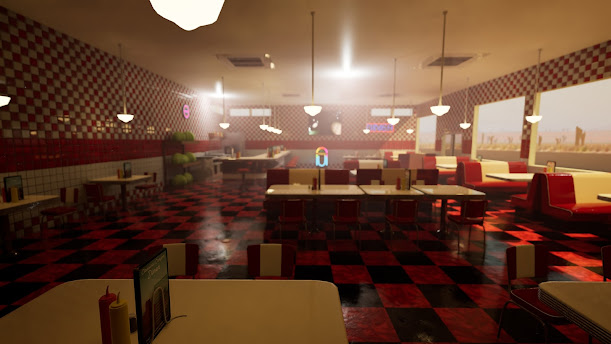
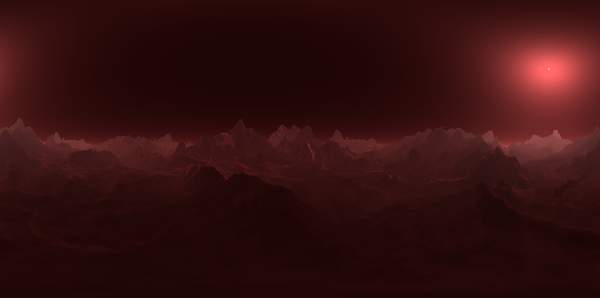
This week, I was learning HDRI backdrop and scene capture in Unreal Engine. They are tutorials which I referred to create HDRI backdrop. Both tutorials are so helpful to use HDRI in Unreal Engine. I'm going to simply explain steps to create a HDRI backdrop from the scene in Unreal Engine. 1. Prepare the scene which you want to use as HDRI. 2. Create "Scene Capture Cube", choose texture target itself, and create texture file in the folder in content browser 3. You can move the scene capture cube and change the image to capture. If you want the scene to look bigger, move the cube to a lower position. To do the opposite, move the cube to an upper position. 4. Double click to choose the texture file and change resolution bigger. 5. Right click the texture file and create a static texture. 6. Asset Action > Export it as HDR file. These are general steps to create HDR images from the scene view. This technique is useful to other projects, too. And these will be the steps...
Comments
Post a Comment